Why Use BFG?
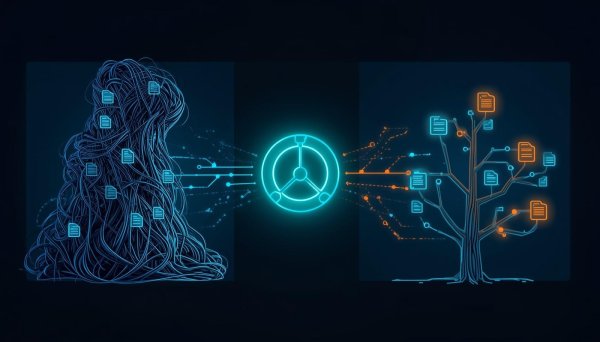
Removing bulky files and old test data from your Git history doesn’t just save disk space—it speeds up cloning, improves performance, and keeps your repository professional. While Git’s built-in filter-branch is powerful, it's notoriously slow and complex. BFG Repo-Cleaner is a faster, simpler alternative designed specifically for this job.
1. Installation & Setup
BFG is a Java-based tool. You’ll need the Java Runtime Environment (JRE) installed (check by running java -version).
🍎 For macOS (Recommended)
The easiest way to install BFG on a Mac is via Homebrew. It handles the Java dependencies and the system path automatically.
brew install bfg
After this, you can simply type bfg from any terminal window.
🐧 For Linux
- Install Java:
sudo apt-get install default-jre - Download: Get the
bfg.jarfrom the official site. - Create an Alias: Add this to your
~/.bashrcor~/.zshrc:
alias bfg='java -jar /path/to/your/bfg.jar'
🪟 For Windows
- Install Java: Download from Adoptium.
- Download: Place
bfg.jarinC:\Tools\BFG\. - Setup Path: Create a file named
bfg.batin that folder:
@echo off
java -jar "C:\Tools\BFG\bfg.jar" %*
Add C:\Tools\BFG to your Environment Variables > Path.
2. The "Sacred Files" Rule
Before running any commands, understand this: BFG protects your current files.
By default, BFG will not modify the contents of your latest commit (the HEAD). This means:
- If a 100MB file is in your current folder, BFG won't delete it.
- If a password is in your current code, BFG won't scrub it.
Your current files are sacred. To delete something with BFG, you must first
git rmthe file (or fix the text) in your current commit, then run BFG to wipe the "ghosts" of those files from your history.
3. The Step-by-Step Cleanup
Step 1: Clone a Mirror
We don't clean the repo you are currently working in. We clean a "mirror" copy which contains every branch and tag in your history.
git clone --mirror git@github.com:your-username/your-repo.git
git clone --mirror: This downloads the full Git database. It's a "bare" repo, so you won't see your source files, just the.gitinternal data.
Step 2: Navigate and Run BFG
Navigate into the folder you just cloned and run the BFG commands.
Example A: Remove all files bigger than 50MB
cd your-repo.git
bfg --strip-blobs-bigger-than 50M .
bfg: Calls the cleaner.--strip-blobs-bigger-than 50M: Tells BFG to find any file in history over 50MB and delete it..: This tells BFG to look inside the current directory.
Example B: Delete unwanted Test/Log folders
bfg --delete-folders {unwanted_tests,logs,temp_data} .
--delete-folders: Removes these folders from every single commit in your history.
Example C: Replacing Sensitive Text (Passwords/API Keys) If you accidentally committed a secret, BFG can swap it out across your entire history.
- Create a file named
passwords.txt. - Put the text you want to hide inside that file (one per line).
- Run:
bfg --replace-text passwords.txt .
--replace-text: BFG will find every instance of the words in your text file and replace them with***REMOVED***.
Step 3: Permanent Garbage Collection
BFG "marks" files for deletion, but Git keeps them in a hidden safety log (reflog). To actually save space, you must empty the trash.
git reflog expire --expire=now --all && git gc --prune=now --aggressive
git reflog expire: Tells Git to forget the "undo" history for these files.git gc --prune=now --aggressive: The Garbage Collector physically deletes the files and compresses the remaining repo for maximum speed.
Step 4: Push the Clean Version
git push --force
--force: Required because you have rewritten history.- ⚠️ Warning: Tell your team before doing this! They will need to delete their local copies and re-clone the fresh, slimmed-down version.